Enhancement to Stay UI
To improve the user experience, enhancements have been made to the following screens in Stay:
-
House Accounts (All Settings ➜ Accounting ➜ House Accounts)
-
Comp Reasons (All Settings ➜ Accounting ➜ Comp Reasons)
-
Routing Rule Templates (All Settings ➜ Templates ➜ Routing Rule Templates)
-
Policies and Codes (All Settings ➜ Reservations ➜ Policies and Codes)
-
Custom Fields (All Settings ➜ General ➜ Property, Buildings & Outlets ➜ Custom Fields)
-
Fiscal Year (All Settings ➜ General ➜ Property, Buildings & Outlets ➜ Fiscal Year)
Enhancements Made to House Accounts Screen
The following changes have been made to the House Accounts screen (All Settings ➜ Accounting ➜ House Accounts):
-
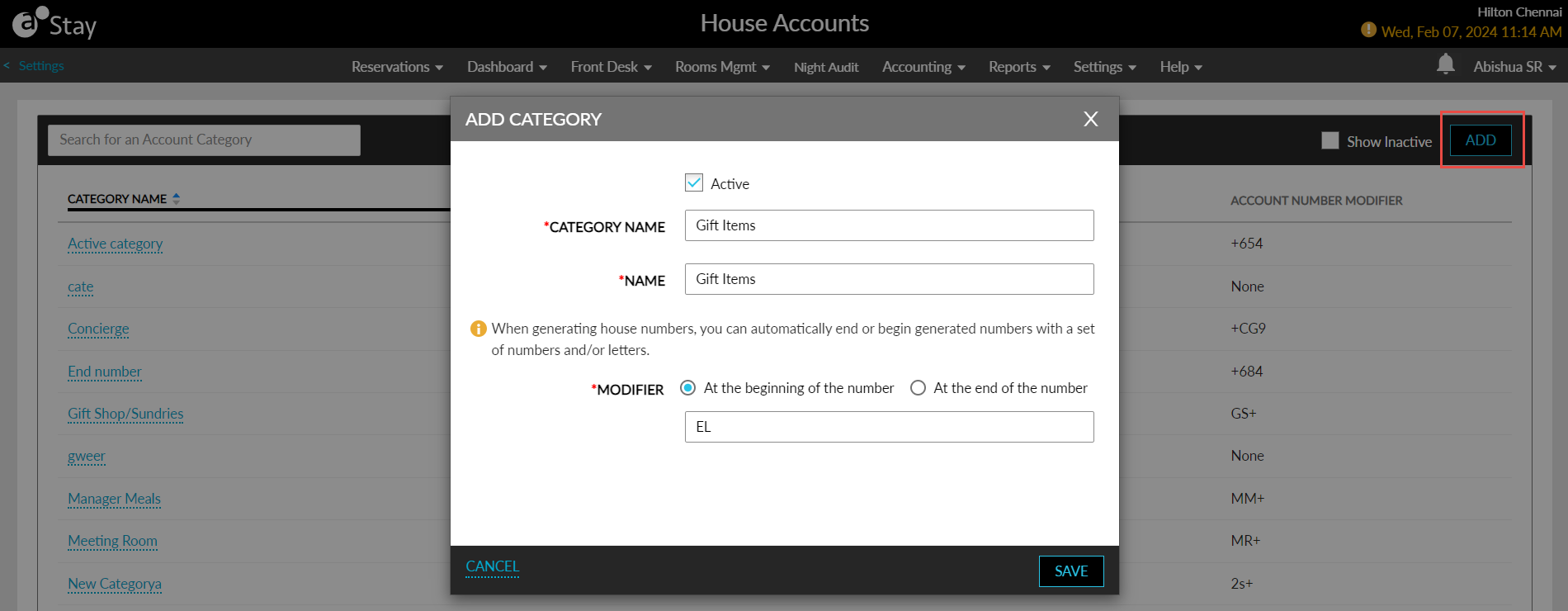
The +Add A Category hyperlink has been removed and a new option, Add, has been added. When clicked, the newly added Add Category pop-up screen appears that allows users to create a new category.
Enhancements Made to Comp Reasons Screen
The following changes have been made to the Comp Reasons screen (All Settings ➜ Accounting ➜ Comp Reasons):
-
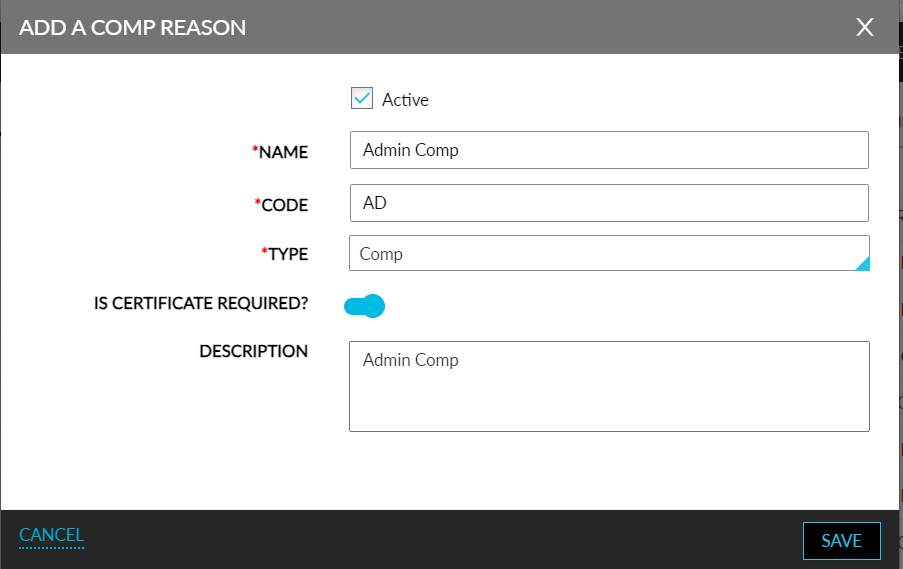
When users click Add, the fields in the Add A Comp Reason pop-up screen are aligned to the right and displayed one below the other.
-
The Certificate Required checkbox in the Add A Comp Reason pop-up screen is removed and a new flag, Is Certificate Required?, has been added. Users must enable this flag to request a certificate number when using the comp reason for adjusting rates.
-
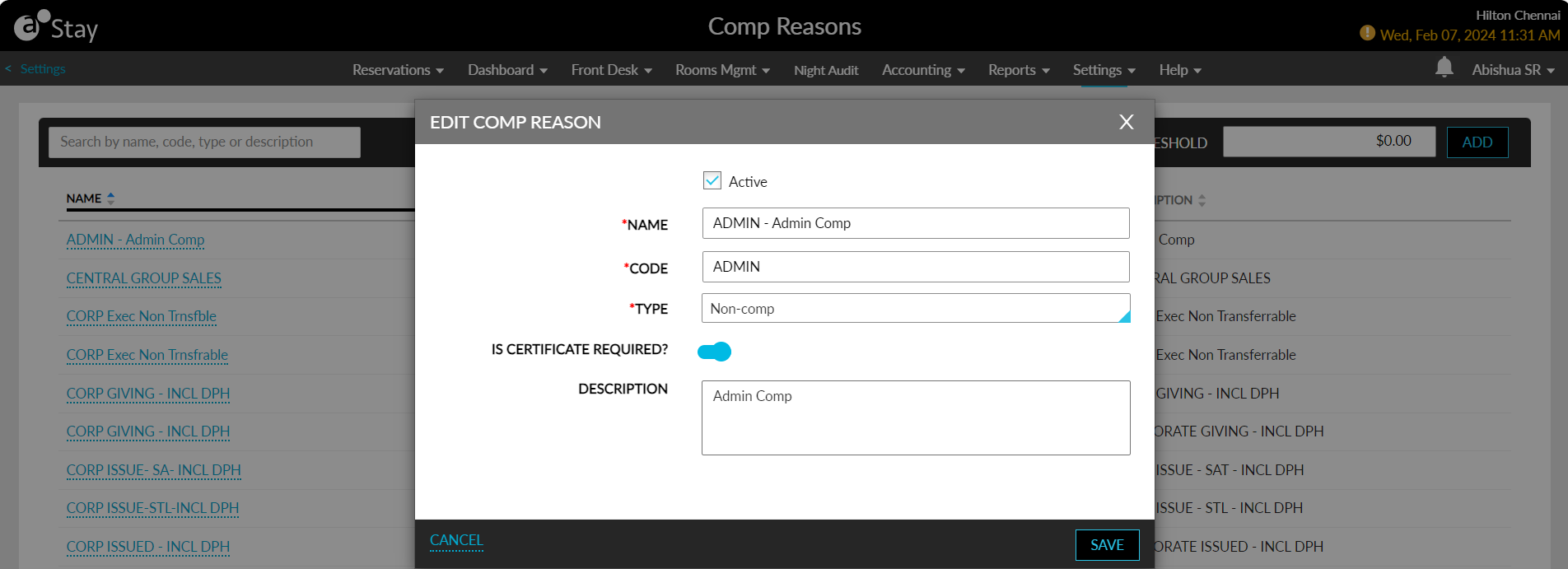
The checkboxes to select the created comp reasons and the Edit option have been removed. Users must click the comp reason name to access the Edit Comp Reason pop-up screen to edit the values for the previously created comp reasons.
-
The fields in the Edit Comp Reason pop-up screen are aligned to the right and displayed one below the other.
Enhancements Made to Routing Rule Templates Screen
The following enhancements have been made to the Routing Rule Templates (All Settings ➜ Templates ➜ Routing Rule Templates) that appears when the Enhanced Routing Rule feature setting is enabled:
-
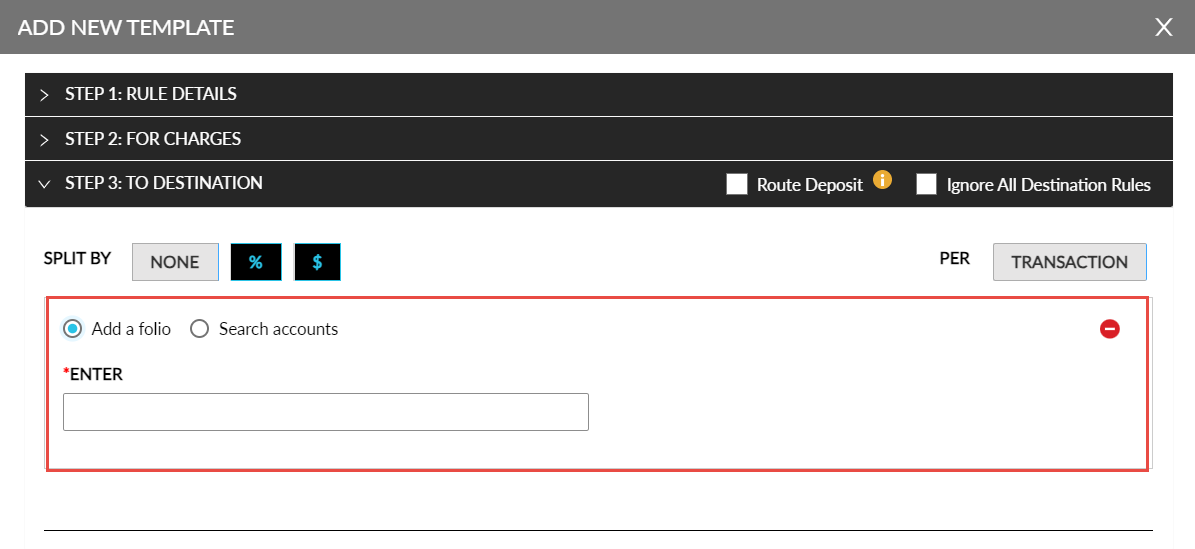
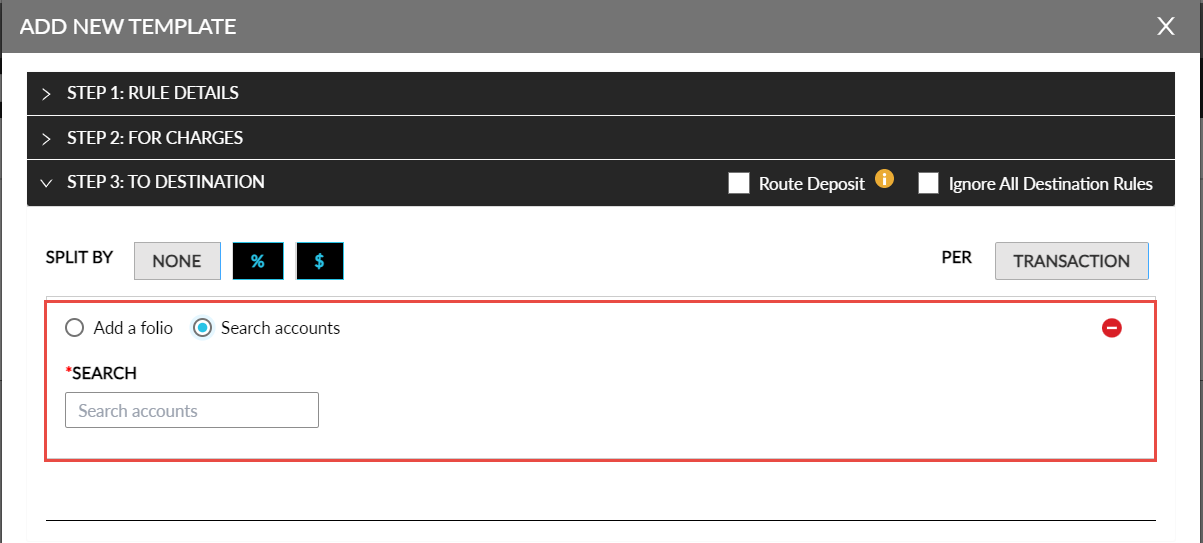
In the Step 3: To Destination section, two new radio buttons, Add a folio and Search accounts have been added.
-
Add a folio: When selected, the Enter field appears that allows users to enter the folio name.
-
-
Search accounts: When selected, the Search field appears that allows users to search for an account.
-
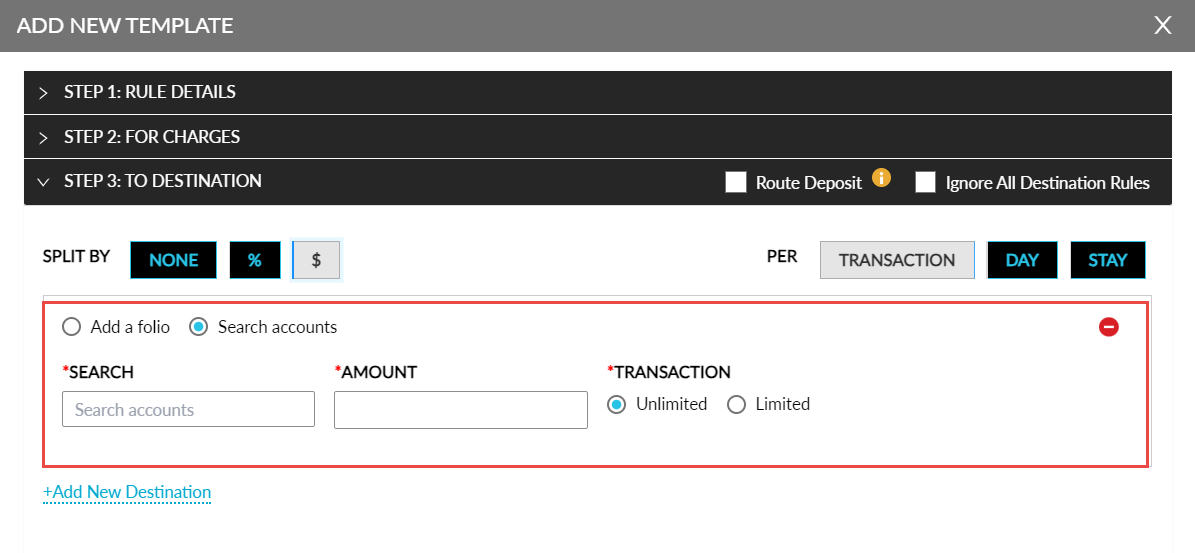
When the % and $ Split By options are selected, the Percentage/Amount and Transaction fields appear that allows users to configure the percentage/amount and the transaction limits for the selected folio/account.
-
The For - Per Day, Per Stay, and Per Transaction options have been renamed to Per - Day, Stay, and Transaction.
-
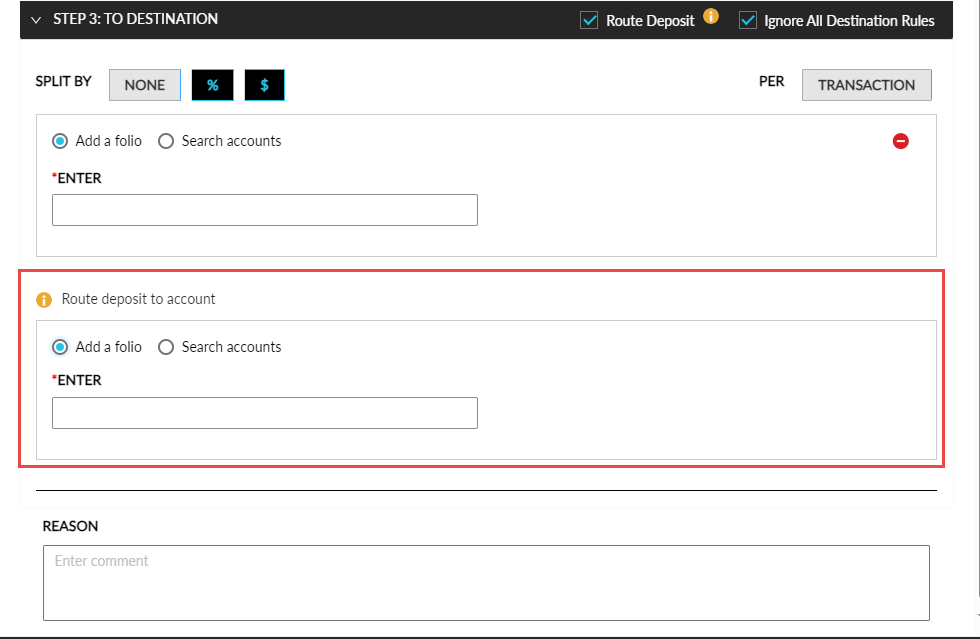
When the Route Deposit checkbox is selected, the following radio buttons are displayed for selection:
-
Add a folio: When selected, the Enter field appears that allows users to enter the folio name.
-
Search accounts: When selected, the Search field appears that allows users to search for an account.
-
Enhancements Made to Policies and Codes Screen
The pop-up screens that appear when users perform add or edit operations in the following sections in the Policies and Codes screen (All Settings ➜ Reservations ➜ Policies and Codes) can be dragged and positioned as preferred by the users:
-
VIP Status
-
Deposit Settings
-
Cancellation Policies
-
Early Departure Policies
-
Lost Business Tracking
Enhancements Made to Custom Fields Screen
The pop-up screens that appear when users perform add or edit operations in the Custom Fields screen (All Settings ➜ General ➜ Property, Buildings & Outlets ➜ Custom Fields) can be dragged and positioned as preferred by the users.
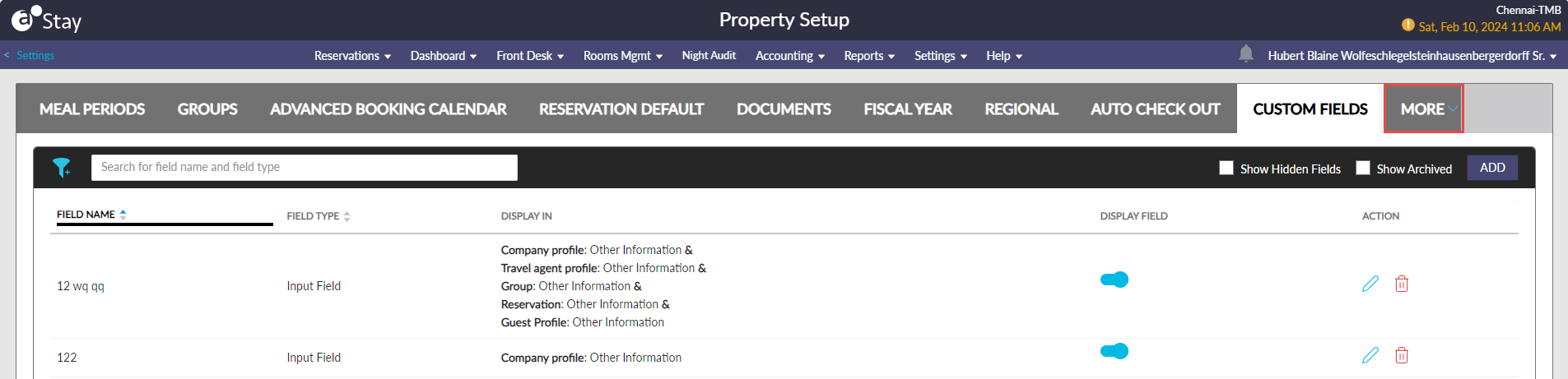
To improve the layout of the screen, a new menu, More, is displayed next to the Custom Fields tab. When clicked, the tabs that are successive to the Custom Fields tab are displayed.
Enhancements Made to Fiscal Year Screen
The pop-up screens that appear when users perform add or edit operations in the Fiscal Year screen (All Settings ➜ General ➜ Property, Buildings & Outlets ➜ Fiscal Year) can be dragged and positioned as preferred by the users.
To improve the layout of the screen, a new menu, More, is displayed next to the Fiscal Year tab. When clicked, the tabs that are successive to the Fiscal Year tab are displayed.